A computer virus sounds scary, but protecting your device usually comes down to a few steady habits. The good news is that basic protection works well when you keep it simple and stick with it.
In plain language, a virus is harmful software that gets into your computer and causes trouble. In 2026, that trouble also includes ransomware, spyware, trojans, and fileless attacks. You don’t need deep technical skills to lower your risk. You need good habits that work at home, at school, and at work.
Start with built in protection and keep it turned on
Most people don’t need a stack of security tools. On Windows, Microsoft Defender is still a solid starting point for everyday protection in 2026, and Macs also include built-in safeguards. What matters most is keeping real-time protection on so your computer checks files, apps, and email attachments before they open.
Use trusted antivirus software that updates automatically
If you use Windows, Microsoft Defender is the easiest place to start. It runs in the background, updates itself, and blocks many common threats without much setup. For many home users, that’s enough when the system stays current.
If you want another option, stick with names people already know. Examples include AVG Free and Panda Dome. Some antivirus tools now add phishing protection, Wi-Fi alerts, and pop-up blocking. Those extras can help, but the main goal stays the same: choose trusted software, download it from the official source, and let it update on its own.
Random “free antivirus” downloads are a bad bet. Some are weak, some push ads, and some create new problems. A security app should feel like a smoke alarm, not a mystery box.
Run regular scans so threats do not sit hidden for weeks
Real-time protection watches your computer all the time. A full scan does something different because it checks the whole system, including places malware may hide quietly. Leave real-time protection on at all times, then run a full scan about twice a month.
That’s also smart after you install new software, plug in a USB drive, or click something suspicious. If you want the steps, this guide shows how to run a full Defender scan on Windows 11.
A scan takes time, but hidden malware takes more. Think of it like checking under the bed before a small problem turns into a bigger mess.
Close security gaps by updating your system, apps, and network
Old software is one of the easiest doors for malware to use. Attackers often go after known flaws in Windows, macOS, browsers, and common apps because many people delay updates.
Automatic updates fix holes you can’t see, often before you know they exist.
Turn on automatic updates for your computer and browser
Set your computer to install updates automatically. Do the same for Chrome, Edge, Firefox, Safari, and the apps you use every day. In 2026, phishing and ransomware groups still count on outdated devices, especially when people ignore restart prompts for weeks.
Check once a week if needed, but let the system do most of the work. This matters for security patches, browser fixes, and everyday software like PDF readers, office apps, and video tools. If an update notice appears, don’t keep pushing it aside.
Leave your firewall on and secure your home Wi Fi
A firewall filters network traffic. In simple terms, it blocks suspicious connections before they reach your computer. Windows Firewall is built in, and for most home users, it should stay on.
Your router matters too, because it’s the front door to your home network. Change the default admin password right away. Then use WPA3 if your router supports it, or WPA2 if it doesn’t. This WPA3 configuration guide explains the standard behind newer Wi-Fi security.
While you’re in the router settings, install firmware updates as well. Also, create a guest network for visitors or smart devices. That way, your main laptop and personal files aren’t sharing the same lane as every speaker, plug, or camera in the house.

Use safer online habits because many viruses start with one click
Most infections don’t look dramatic. They start with a fake invoice, a shady download, or a message that pushes you to act fast. That’s why calm habits beat fear every time.
Be careful with links, attachments, downloads, and USB drives
Don’t open unexpected attachments, even if the message looks familiar. Criminals now use AI-written emails that sound more natural than the sloppy scams many people expect. If a bank, school, or coworker sends a strange link, type the site address yourself instead of clicking.
The same rule applies to text messages, pop-up ads, and urgent login warnings. Modern browsers can block many dangerous sites, but they aren’t perfect. Pirated software, cracked games, random browser extensions, and unknown downloads still carry real risk.
USB drives deserve the same caution. If you don’t know where a drive came from, don’t plug it in. A tiny device can carry malware just as easily as a fake link can.
Use strong passwords, a password manager, and multi factor authentication
Account security matters because stolen passwords often lead to bigger problems. March 2026 reporting still shows stolen logins as a common way attackers get in. Once someone gets access to your email or cloud storage, malware and data theft can follow.
Use a unique password for every account. A password manager helps because you don’t have to remember dozens of long, random passwords. Then turn on multi-factor authentication, also called MFA, wherever you can. That extra code or approval step can stop an attacker even if your password leaks.
Good password habits are boring, and that’s exactly why they work. Simple, repeatable steps beat panic every time.
Back up your files so a virus does not become a disaster
Backups don’t stop malware from arriving, but they stop the worst outcome. If ransomware hits, a clean backup can turn a crisis into an annoying afternoon instead of a financial disaster. That matters in 2026, when groups such as LockBit, Cl0p, and Medusa still cause major damage across the US.
Follow the 3 2 1 backup rule to protect photos, work, and school files
The 3-2-1 rule is easy to remember. Keep three copies of your data, on two kinds of storage, with one copy offline. For example, you might keep the original files on your computer, a second copy in cloud storage, and a third copy on an external drive that you unplug after the backup finishes.
For most people, a weekly backup routine is strong basic protection. If you work from home, manage school files, or store family photos, that habit pays off fast. This plain-English guide on the 3-2-1 backup rule for home users gives a simple way to think about it.
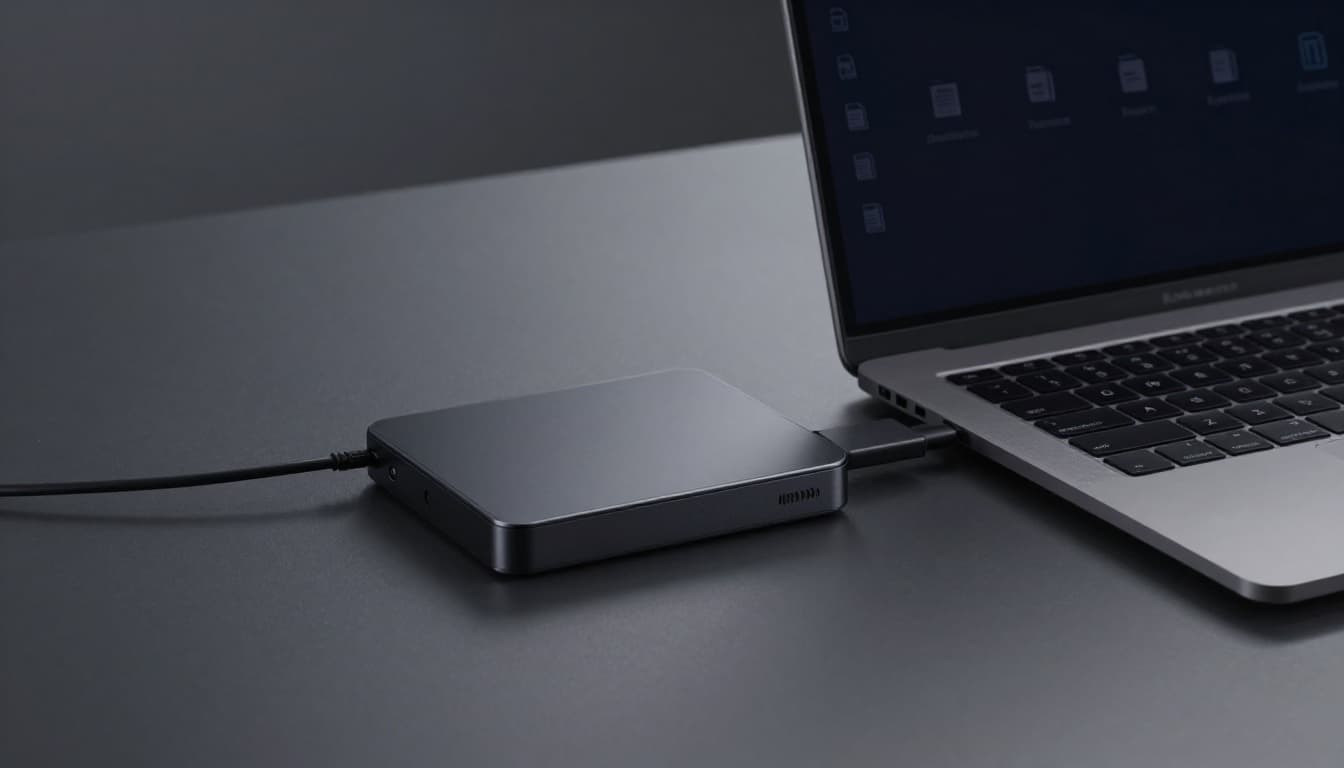
Cloud storage helps, but don’t rely on only one copy in one place. If your backup stays connected all the time, ransomware may reach it too. An unplugged drive or other offline copy gives you breathing room.
Know the warning signs of infection and what to do next
Some red flags are easy to miss at first. Then they pile up. Common symptoms of an infected computer include:
- A computer that suddenly gets much slower
- Constant pop-ups or browser redirects
- New apps or toolbars you didn’t install
- Security tools that won’t open or keep turning off
- Files that change names, disappear, or stop opening
If that happens, act fast but stay calm:
- Disconnect from the internet.
- Run a full security scan.
- Remove suspicious software and extensions.
- Change important passwords from a clean device.
- Restore files from a clean backup if needed.
Don’t pay a ransom if you can avoid it. Payment doesn’t promise recovery, and it can invite more trouble.
The habits that matter most
Small actions protect computers better than last-minute heroics. Keep antivirus active, update your system and apps, leave the firewall on, browse carefully, use strong passwords with MFA, and back up your files on a schedule.
You don’t need to be highly technical to stay safer. You need consistency. In 2026, the best protection still comes from simple habits done over and over again.