Too many accounts, too many logins, and too much to lose if one password slips out. That’s the problem most people face now, and it’s worse than it used to be.
A stolen password doesn’t stay in one place. Phishing, credential stuffing, and data breaches can turn one weak habit into a chain reaction across email, banking, shopping, and work accounts. The good news is that password security doesn’t have to feel hard.
You need a simple system, not a perfect memory. Start there, and the rest gets easier.
Build a safer password system from the start
The strongest password strategy is also the simplest. Give every account its own password, make each one long, and stop trying to outsmart attackers with random symbol tricks alone.
Current guidance in 2026 puts length and uniqueness ahead of forced complexity. For most accounts, aim for at least 12 to 16 characters. For email, banking, cloud storage, and anything tied to your identity or money, aim for 20 or more.
That sounds like a lot until you stop trying to memorize everything.
Use long, unique passwords for every account
Reusing passwords is like using one house key for your car, office, mailbox, and safe. Lose it once, and everything opens.
That’s exactly how credential stuffing works. Attackers take usernames and passwords leaked in one breach, then try them on other sites. If you reused the same login, or even a small variation, they may get in. Early 2026 has already brought major US breaches across healthcare and retail, including one involving millions of consumer accounts. When that happens, reused passwords become a gift.
One leaked password can unlock far more than the account where it first appeared.
Picture this: your old shopping account gets breached. You reused that password for your email. Once your email is exposed, an attacker can reset passwords for banking, social media, and cloud storage. That’s why email deserves your strongest setup first.
Create passphrases that are strong and easier to remember
A good passphrase is long, odd, and personal only to your memory, not your public life. Think of several unrelated words with no obvious pattern. Add length first, then extra characters if you want.
For example, a safe style looks like four or five random words with mixed case or spacing rules you understand. Don’t use song lyrics, famous quotes, pet names, birthdays, or hometown details. Also skip patterns like Summer2026! or Name12345.
If you still remember passwords manually for a few key accounts, passphrases are easier to live with than short, complex strings. Still, manual memory should be the exception, not the plan.
Choose the safest place to store your passwords
For most people in 2026, the safest and easiest place to store passwords is a dedicated password manager. It gives you one protected vault for long, unique logins and handles the hard part, generating and filling them across devices.
Trusted password managers use strong encryption so your vault stays locked behind your master password. They also remove the biggest reason people reuse passwords, which is convenience. Bitwarden and 1Password remain two well-known examples in 2026, and broader comparisons like PCMag’s tested password manager picks can help if you want to compare features before choosing one.
What should you avoid? Don’t keep passwords in a notes app, email draft, spreadsheet, or document named “logins.” Paper isn’t automatically bad, but repeated handwritten lists left in drawers, backpacks, or desk organizers are easy to find and easy to lose.
What a good password manager should do
A solid password manager should cover the basics without drama. It should generate strong passwords, sync across your phone and computer, and autofill only on the right sites.
Look for breach alerts, secure notes, and a report that flags weak or reused passwords. Support for passkeys also matters more now, since many sites are adding them. Good tools make all of this feel boring, which is exactly what you want from security.
How to protect your password manager itself
Your password manager becomes the front door, so lock that door well. Use a long master password or passphrase that you’ve never used anywhere else. Make it memorable, but not guessable.
Next, turn on multi-factor authentication for the manager itself. That way, even if someone gets your master password, they still hit a second wall.
Also store recovery codes in a safe offline place. Losing your master password can lock you out of everything, so recovery planning matters as much as setup.
Add extra protection with MFA and passkeys
Passwords alone aren’t enough for many accounts now. Even a strong password can be stolen through phishing, malware, or a fake login page. That’s why you need a second check.
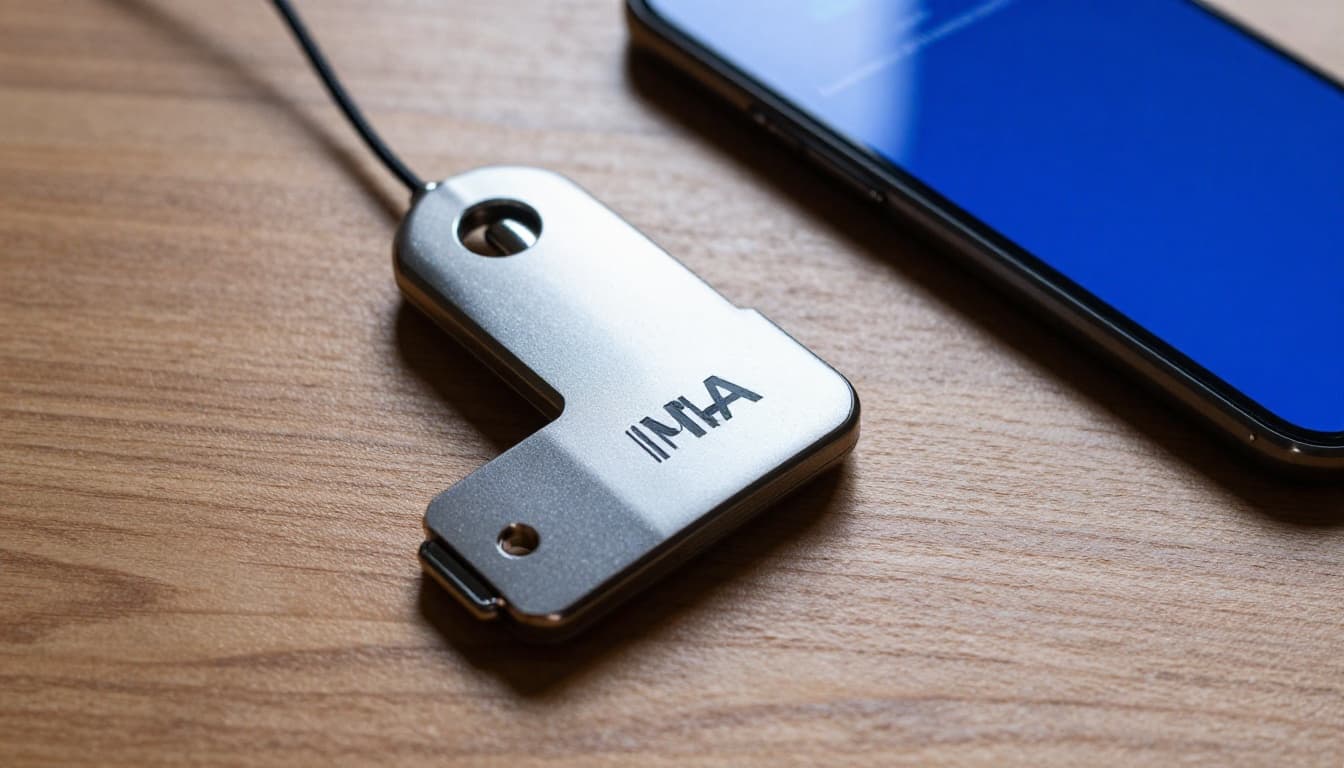
Multi-factor authentication, or MFA, asks for something beyond the password, such as a code from an app, a security key, or your fingerprint. Recent guidance still treats app-based MFA and hardware keys as stronger choices than SMS for most people, because text messages can be intercepted or redirected.
Pick the best MFA method for your most important accounts
Start with email, banking, cloud storage, and work accounts. Those are the accounts that can unlock other accounts or expose the most damage.
This quick comparison keeps the tradeoffs clear:
| MFA method | Security | Ease of use | Best use |
|---|---|---|---|
| SMS codes | Lowest of the three | Easy | Only if nothing else is available |
| Authenticator app | Strong | Easy to moderate | Best default choice for most people |
| Hardware security key | Strongest | Moderate | Best for email, work, admins, and high-risk users |
The takeaway is simple: use an authenticator app by default, and use a hardware key for your most sensitive accounts when possible. If you want a plain-English breakdown, this MFA ranking guide compares common methods side by side.
Use passkeys when a site offers them
Passkeys are growing fast, and they’re worth using. By late 2025, support had reached billions of accounts, and adoption kept rising into March 2026 across consumer and business services.
In simple terms, a passkey lets your device prove it’s you. Instead of typing a password, you approve the sign-in with your fingerprint, face scan, or device PIN. Because the secret stays tied to your device, passkeys are much harder to steal with phishing sites.

If a site offers passkeys, use them, especially for email, financial tools, and major cloud accounts. You’ll still need a plan for accounts that haven’t caught up, but passkeys can shrink the number of passwords you rely on. For a clear explainer, ZDNET’s passkey guide breaks down how they work without the jargon.
Keep your accounts organized and watch for warning signs
Good password habits fail when they become messy. The fix is to organize accounts by risk and work from the top down.
Start with your highest risk accounts first
Secure your email first. It’s the master key for password resets, billing notices, and identity recovery. After that, move to banking, credit cards, payment apps, and cloud storage. Then handle shopping, social media, streaming, and low-risk forums.
This order matters because it cuts the biggest risk first. If you can only spend 30 minutes today, spend it on email and banking.
You also don’t need to change every password on a calendar. Current best practice says to update passwords when there’s a real reason, such as a breach, suspicious login, or known reuse problem. Forced changes often push people into weaker choices.
Know when to change a password right away
Some triggers should move you fast. Change a password right away after a breach notice, a suspicious login alert, a phishing mistake, sharing a password with someone else, or finding that you reused it on old accounts.
It also helps to review account activity once in a while. Look for unknown devices, odd locations, and password reset emails you didn’t request. If you want to see whether your email has appeared in known breaches, Have I Been Pwned is a useful first check.
Security works better when it becomes routine, not a once-a-year panic. A password manager report, MFA alerts, and an occasional account review are usually enough to keep things under control.
A safe password setup doesn’t require perfect habits. It needs one solid routine: use a password manager, create long unique passwords, turn on MFA, and switch to passkeys where you can.
Start with your email and banking accounts today. Lock those down first, and the rest of your digital life gets safer from there.