If someone steals your password, they can often walk right into your account. That’s the weak spot two-factor authentication is built to fix.
2FA adds one more proof that it’s really you before a site lets you in. That matters even more in 2026, because phishing, password leaks, and account takeovers still happen every day, even as passkeys and stronger sign-in tools become more common.
Here’s how it works, why it helps, and which options make the most sense now.
What two-factor authentication is, and why a password alone is not enough
Two-factor authentication is a login method that asks for two different kinds of proof. A password is one kind. A phone, security key, or fingerprint can be the second.
That matters because passwords fail in common ways. People reuse them. Sites get breached. Fake login pages trick people into typing them. Once a password is exposed, a second factor can stop the attack cold.
The three types of login factors in simple terms
Security teams group login factors into three basic buckets:
- Something you know: a password, PIN, or passphrase
- Something you have: a phone, authenticator app, or security key
- Something you are: a fingerprint or face scan
Real 2FA uses two different buckets. So, a password plus a phone code counts. Two passwords do not.
For a plain-language overview, the FTC explains using two-factor authentication to protect your accounts.
How 2FA is different from two-step verification
People often use these terms like they mean the same thing. In everyday use, that’s fine. Still, there is a small difference.
Two-factor authentication means two different factor types. Two-step verification means two steps, but not always two types. For example, a site might call a password plus emailed code “two-step verification.” It still adds protection, but the strongest setups use separate factor types, not two versions of the same idea.
How two-factor authentication works during a login
A 2FA login feels simple on the surface. Behind it, the service is checking both your password and your second proof before it opens the door.
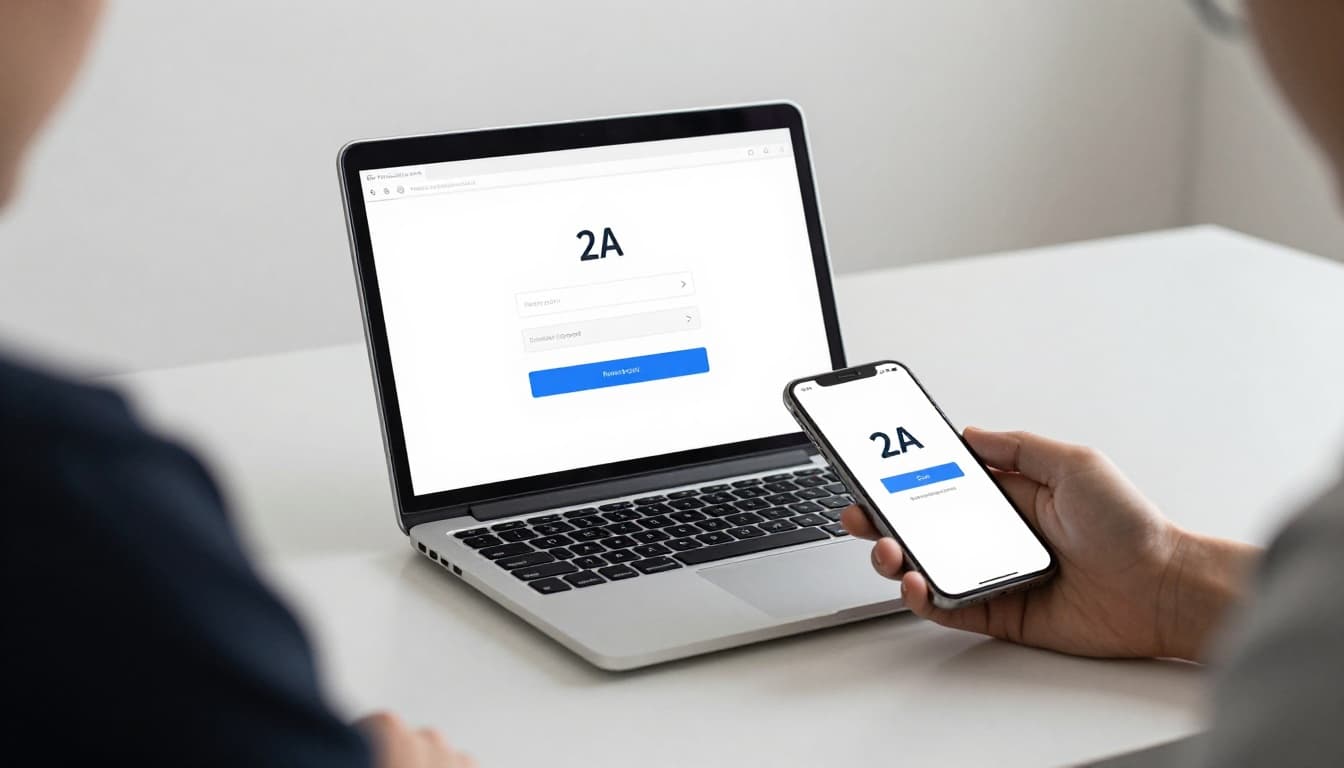
A simple step-by-step example of a 2FA login
Say you’re signing in to your email account:
- You enter your username and password.
- The site checks whether that password is correct.
- Then it asks for a second proof, such as an app code, a push approval, or a security key tap.
- After that second check passes, you get access.
The goal is simple: prove that the person logging in is the real account owner, not just someone who knows the password.
What happens behind the scenes when the second check is approved
The service verifies the code, device, or biometric result. If it matches what the system expects, the login continues. If it doesn’t, access stops.
When biometrics are involved, your fingerprint or face usually stays on your device. The site doesn’t need the raw scan. It only needs confirmation that your device approved the sign-in.
The most common 2FA methods, from text messages to security keys
Not all 2FA methods offer the same level of protection. Some are easier to use, while others do a better job against phishing.
This quick comparison helps show the tradeoffs:
| Method | Ease of use | Security level | Best fit |
|---|---|---|---|
| SMS codes | Easy | Lower | Basic personal accounts |
| Authenticator apps | Easy | Stronger | Most users |
| Push prompts | Very easy | Medium | Fast phone-based logins |
| Security keys | Medium | Very high | High-value accounts |
| Passkeys | Very easy | Very high | Modern personal and work logins |
The big takeaway is clear: authenticator apps, security keys, and passkeys are usually stronger than SMS.
SMS codes and authenticator apps, the options most people start with
SMS sends a one-time code to your phone. It’s familiar, and it’s better than password-only logins. However, text messages can be intercepted through SIM-swapping attacks, where a thief moves your number to another device.
Authenticator apps generate time-based codes on your phone. Because the code stays inside the app, this setup is usually safer than SMS. If you want a simple next step, many people start there. PCMag keeps a current list of the best authenticator apps for 2026.
Security keys, biometrics, and passkeys, the stronger modern options
Security keys are small physical devices you tap or plug in. They’re hard to phish because they only work with the real site.
Biometrics, like Face ID or a fingerprint, often unlock a second factor stored on your device. In 2026, passkeys are becoming the top choice on many major platforms because they tie sign-in approval to your device and the real website. NIST offers a solid background on what multi-factor authentication is and why it matters.
The biggest benefits of 2FA, and the limits readers should know about
2FA blocks many common account takeover attempts. If your password leaks in a breach, the attacker still needs your second factor. That extra layer can protect email, banking, cloud storage, and social media from quick break-ins.
How 2FA helps stop common attacks like phishing and stolen passwords
Think about how many passwords end up exposed. Some get guessed. Others show up in old leaks. Many get reused across multiple sites. 2FA cuts the damage because one stolen password no longer opens every door.
That said, it doesn’t stop every trick. A fake site can still ask for a code, and a rushed user might give it away.
Never approve a login prompt you didn’t start yourself.
Where 2FA can fall short, including SMS risks and account lockouts
SMS is weaker than other methods. Push prompts can also backfire if someone keeps sending them until you tap “approve” out of annoyance.
There’s another risk: lockouts. Lose your phone or security key, and getting back in can become a pain. That’s why backup codes and recovery settings matter as much as turning 2FA on in the first place.
How to set up two-factor authentication the right way
Start with the accounts that can unlock everything else. That means email first, then your password manager, bank, work logins, cloud storage, and social accounts.
Which accounts to protect first
Email should be at the top of the list because it often handles password resets. A password manager comes next for the same reason. After that, protect money-related accounts and work tools.
Smart setup tips that can prevent future lockouts
Choose an authenticator app, passkey, or hardware key when the service offers one. Save backup codes somewhere safe, not in your inbox. If possible, keep a second trusted device ready for recovery. Also, after changing phones, check that your sign-in settings still work. If you’re shopping for a stronger hardware option, ZDNET tracks the best security keys of 2026.
A stolen password shouldn’t be enough to wreck your week. That’s the real value of 2FA.
Start with your most important accounts, and pick stronger methods than SMS when you can. A few minutes of setup today can spare you a major account mess later.