
Your phone, laptop, tablet, and smart home gear hold a lot more than contacts and apps. They often store your photos, passwords, banking info, location history, and even access to your cameras or door locks.
That’s why device updates matter. They don’t only add new features. They also patch security holes, fix bugs, and help devices run better. In 2025 and early 2026, many attacks still worked because people and companies left known flaws unpatched. If you want a simple way to lower risk, start with updates.
What device updates actually do, and why they matter so much
An update is a software change sent by the maker of your device or app. Some updates are big, like a new operating system version. Others are small, like a security patch that fixes one weak spot.
Here’s a quick way to think about the main types:
| Update type | What it does | Why it matters |
|---|---|---|
| Security patch | Fixes a known weakness | Helps block hacks and data theft |
| Operating system update | Refreshes core device software | Improves speed, stability, and support |
| App update | Fixes bugs or adds features in apps | Protects logins, payments, and messages |
| Firmware update | Updates software built into hardware | Helps routers, cameras, locks, and other devices work safely |
That matters because your devices don’t only hold files. They can also expose your microphone, camera, saved credit cards, and home network. A weak point in one device can become an open window into the rest of your digital life.
Security fixes close the doors hackers try to use
Think of a known software flaw like a broken lock on your front door. Once people know it’s broken, anyone who tries the handle has a better shot at getting in.

That’s how a lot of attacks work. After a flaw becomes public, attackers scan for devices that still haven’t been patched. In early 2025 and 2026, unpatched VPNs, routers, office software, phones, and VoIP devices were tied to major break-ins. Many of those attacks were preventable because fixes were already out.
A recent report on phones at risk without updates shows how large the problem can get when people delay basic maintenance.
Waiting on a security update is often like hearing about neighborhood break-ins and deciding to fix your lock next month.
Updates also help your devices run better every day
Security is the big reason, but it’s not the only one. Updates often clean up bugs that make your device slow, hot, or glitchy. They can improve battery life, reduce app crashes, and fix annoying issues like Wi-Fi drops or frozen screens.
They also help with compatibility. A banking app, browser, or video call app may stop working well on older software. Over time, that creates a chain reaction. One old system leads to older apps, and older apps create more risk.
As of March 2026, Apple has already released iOS 26.4 and a fresh macOS Tahoe update. That’s a reminder that device makers keep fixing problems all year, not once in a while.
How to keep your phone, computer, tablet, and smart home devices updated
Most people don’t skip updates on purpose. Life gets busy, the pop-up appears at a bad time, and the device still seems fine. So the best approach is simple, automatic, and easy to repeat.
Start in your device’s Settings menu. On most devices, the update option appears under General, System, About, or Software Update. If your battery is low, charge first. If the update is large, use trusted Wi-Fi. When the device asks for a restart, don’t keep putting it off. That final reboot often completes the fix.
Automatic updates are the easiest win. Turn them on for your phone, laptop, tablet, apps, and browser when possible. That way, routine fixes happen in the background instead of piling up.
How to check for updates on iPhone, Android, Windows, and Mac
Even with auto-updates on, it helps to know where to check.

- iPhone: Go to Settings > General > Software Update. Apple also has an official iPhone update guide if you want the latest steps.
- Android: Open Settings, then look for System Update, Software Update, or About Phone. The exact path can vary by brand.
- Windows PC: Open Start > Settings > Windows Update, then check for updates. Microsoft’s Windows Update instructions walk through the current process.
- Mac: Open System Settings, then Software Update. On some versions, you may also find it in System Preferences.
These paths may look a little different on older models, but the wording is usually close. If you don’t see an update option right away, use the search bar inside Settings.
Do not forget tablets, apps, browsers, and smart home gear
Tablets often follow the same process as phones, and they deserve the same attention. An old tablet used for streaming or shopping can still store saved passwords, email access, and payment details.
Apps matter too. You use them to sign in, pay bills, transfer money, and message family. Browsers are just as important because they handle logins, cookies, downloads, and autofill data. If your browser is outdated, you may be leaving a weak spot wide open.
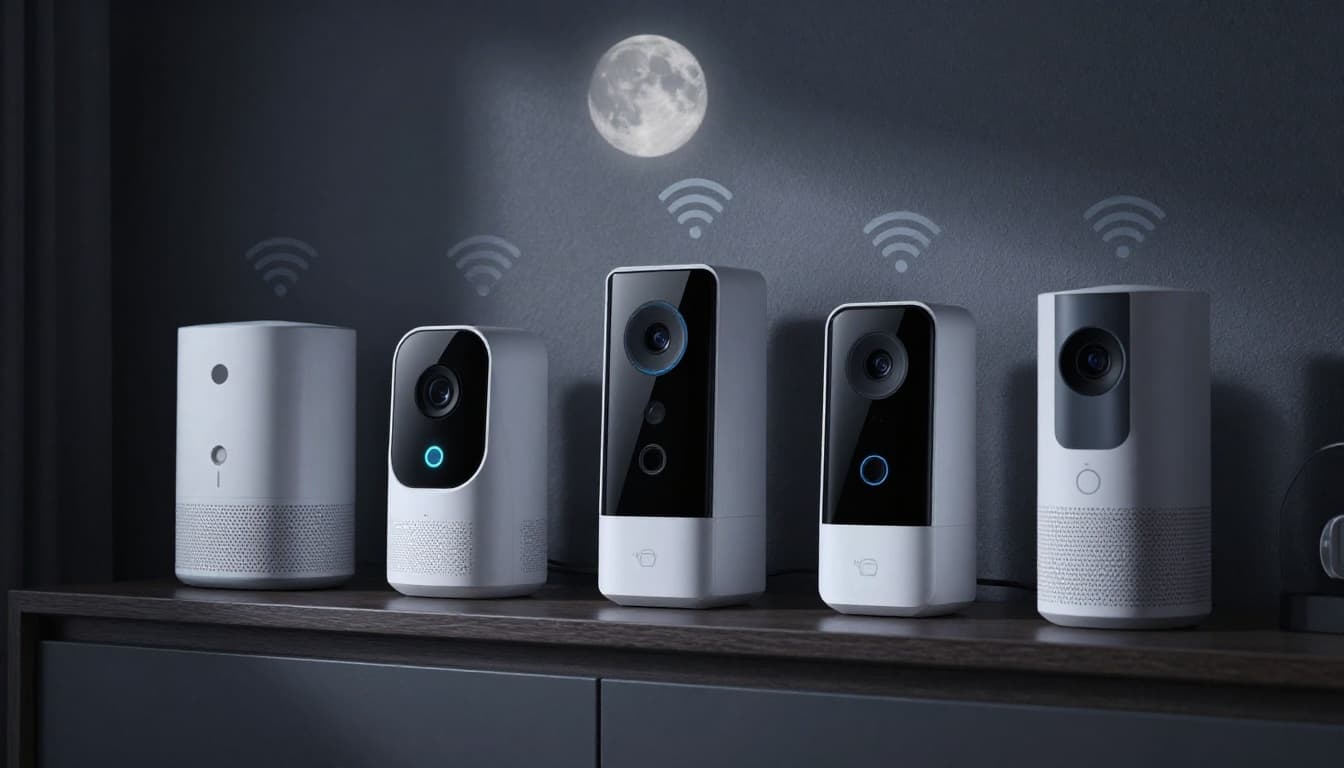
Then there’s smart home gear. Cameras, doorbells, locks, speakers, thermostats, and hubs often get firmware updates through their companion app. Some update on their own, but not all of them do. A helpful overview of smart home firmware security and performance explains why those quiet background devices need attention too.
Simple habits that make updates easier and more reliable
A good update routine should feel boring. That’s the goal. When the habit is simple, you’re more likely to keep doing it.
Turn on automatic updates and pick a regular time to check
First, enable automatic updates on every device that supports them. That covers a lot of the work without asking you to remember each release.
Next, set one reminder each month. Use it to check devices that may need manual attention, especially tablets, smart speakers, doorbells, routers, and spare laptops. Nighttime works well because restarts won’t interrupt work or school.
If you share devices at home, pick one person to own the task. Otherwise, everyone assumes someone else handled it.
Before you update, back up your data and keep your device ready
Updates usually go smoothly, but a little prep lowers the chance of trouble. Keep enough free storage. Plug in the charger. Back up your photos, files, and other important data to cloud storage or an external drive.
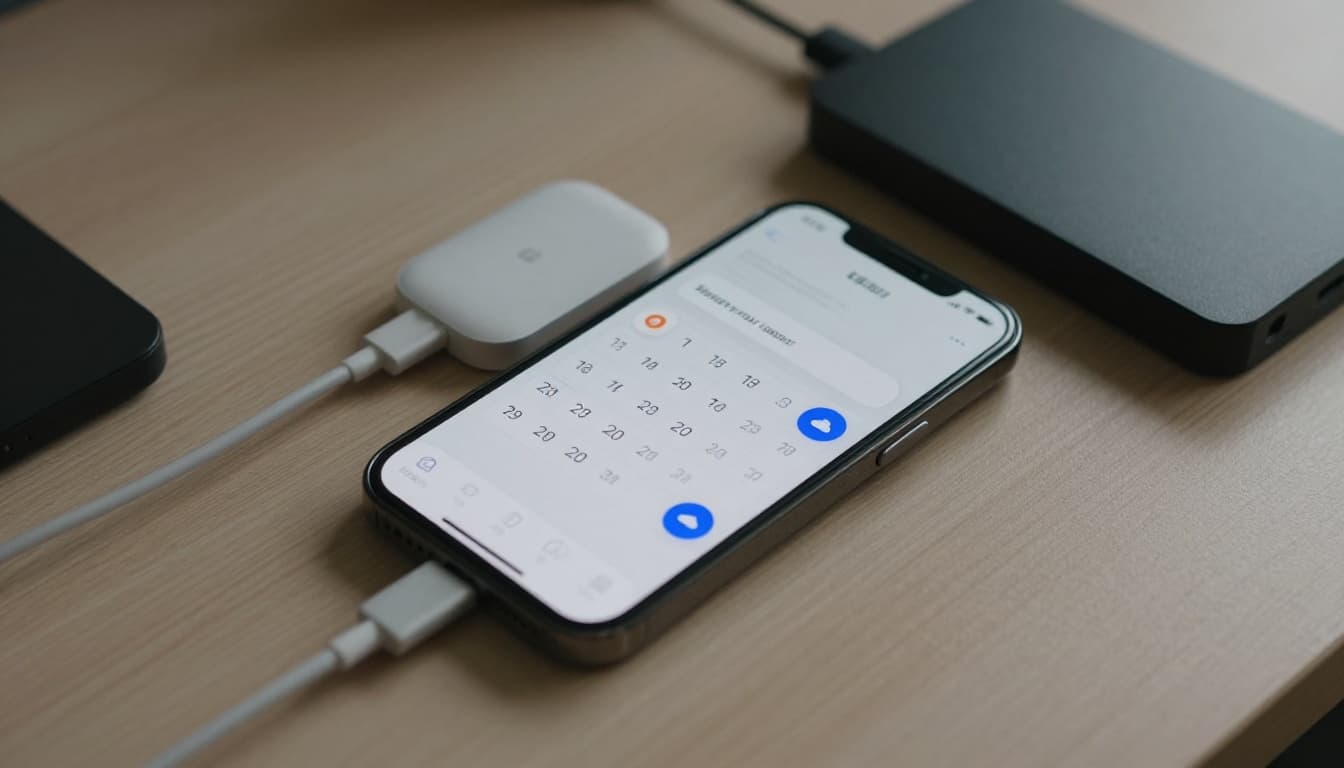
Those steps help in two ways. First, they reduce failed installs. Second, they make recovery easier if something unexpected happens. A five-minute backup beats losing family photos or work files.
Common update mistakes that put your data and privacy at risk
Most update mistakes don’t feel risky in the moment. That’s why they stick.
Putting off updates because your device seems to work fine
A device can look normal and still be exposed. That’s the trap. You can browse the web, send texts, and check email while a known flaw sits there waiting for someone to use it.
Attackers often move fast after a patch is released because they know some people won’t install it right away. So the gap between “update available” and “update installed” matters more than most people think.
Ignoring old devices and connected gadgets you rarely use
The forgotten devices are often the messiest part. Maybe it’s an old phone in a drawer, a tablet your kid used last year, or a spare laptop that still connects to Wi-Fi. Even if you rarely touch it, that device may still hold data or offer a path into your home network.
The same goes for connected gadgets. A camera in the garage, an old streaming stick, or a smart speaker in the guest room can become the weak link.
If you no longer plan to use a device, don’t let it linger forever. Back up anything you want, sign out of accounts, wipe it, and recycle it through a trusted program.
Your best move today is simple:
- Check your phone for updates
- Check your computer for updates
- Turn on automatic updates where you can
- Open your smart home apps and review connected devices
- Deal with any old devices still sitting around your home
A few minutes of upkeep can protect a lot of personal data. More than that, staying updated keeps your devices safer, smoother, and easier to trust.